Scheduled crawls
Crawl a site daily, weekly or monthly, compare each run with the last, and save reports and exports to a folder.
Schedule a crawl
A schedule crawls a site regularly and compares each run with the previous one, so problems show up the week they appear, not at the next audit.
- Set up the crawl configuration you want to use, under Configuration›Crawl configuration….
- Open Crawl›Scheduling… and click New schedule.
- Enter the start URL, how often and when to crawl, and where to save results. Then save.
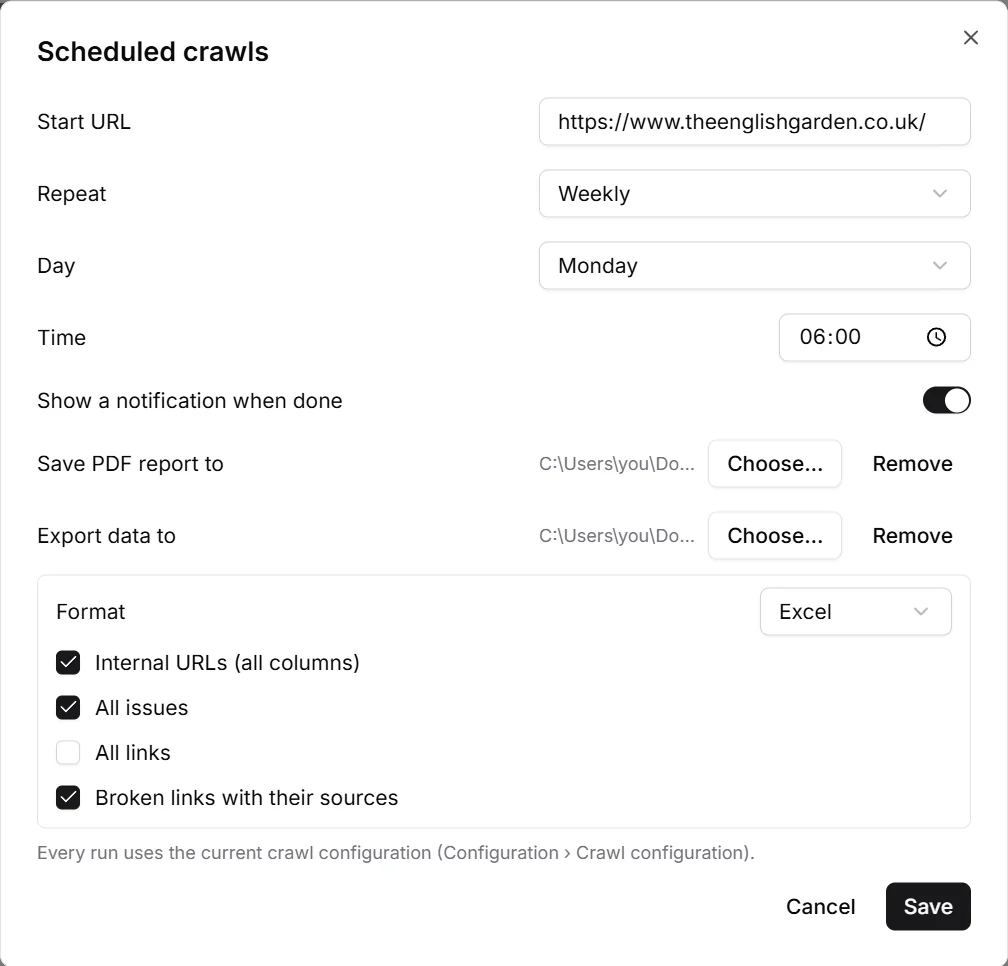
- Repeat
- Daily, weekly on a day of your choice, or monthly on a day from 1 to 28 (a day every month has).
- Show a notification when done
- A desktop notification with the result of the run.
- Save PDF report to
- Writes the PDF report of each run into a folder, compared with the previous run.
- Export data to
- Writes the tables you tick into a folder, as CSV or Excel: internal URLs with all columns, all issues, all links, or broken links with their sources.
A schedule keeps the crawl configuration as it was when you saved the schedule. To crawl with changed settings, change the configuration, then open the schedule and save it again.
Your schedules
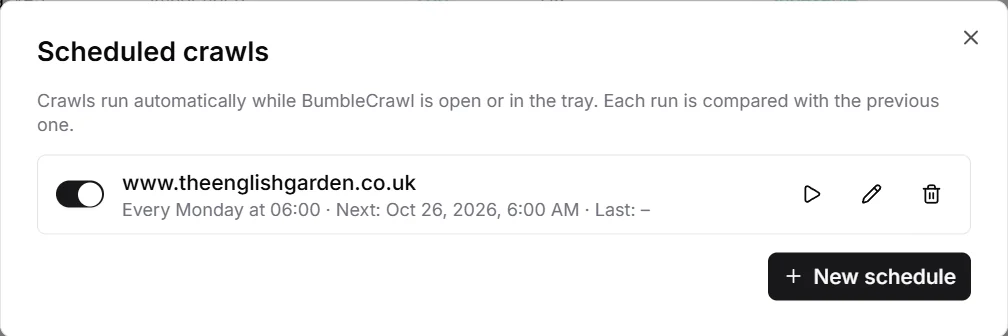
- The switch pauses a schedule without deleting it.
- The play button runs it right away, e.g. to test the folders.
- Next and last run are shown under each site.
Keep BumbleCrawl running
Scheduled crawls run while BumbleCrawl is open or in the tray (the menu bar on a Mac). In File›Settings… › Background:
- Keep running in the tray for scheduled crawls: closing the window keeps BumbleCrawl running in the background.
- Start with the system (in the tray): BumbleCrawl starts when you log in, without opening a window.
A run that was due while the computer was off or asleep starts when BumbleCrawl next runs. Each run is a normal crawl: open it from File›Open crawl… and see what changed in compare mode.
For servers and build pipelines, where no window should open, use the command line with your system's scheduler instead.