Search Console, Analytics and real-user Web Vitals
Add clicks, impressions, keywords and visits to every page, and real-user Web Vitals from the Chrome UX Report.
Google data on every page
A crawl tells you what's on your pages. Google's data tells you which of them matter: which get clicks, rank close to the first page, or have visitors. BumbleCrawl adds it after every crawl, for every page:
- Search Console
- Clicks, impressions, average position and click-through rate of the last 28 days, and the keywords each page ranks for.
- Google Analytics 4
- Page views or landing-page sessions, engagement and, for shops, revenue, for the period you choose.
- Chrome UX Report
- Web Vitals of real Chrome users: the numbers Google uses for rankings.
Everything is set up under Configuration›Integrations…. Keys and tokens are stored encrypted on your computer and only sent to Google.
Connect Search Console and Analytics
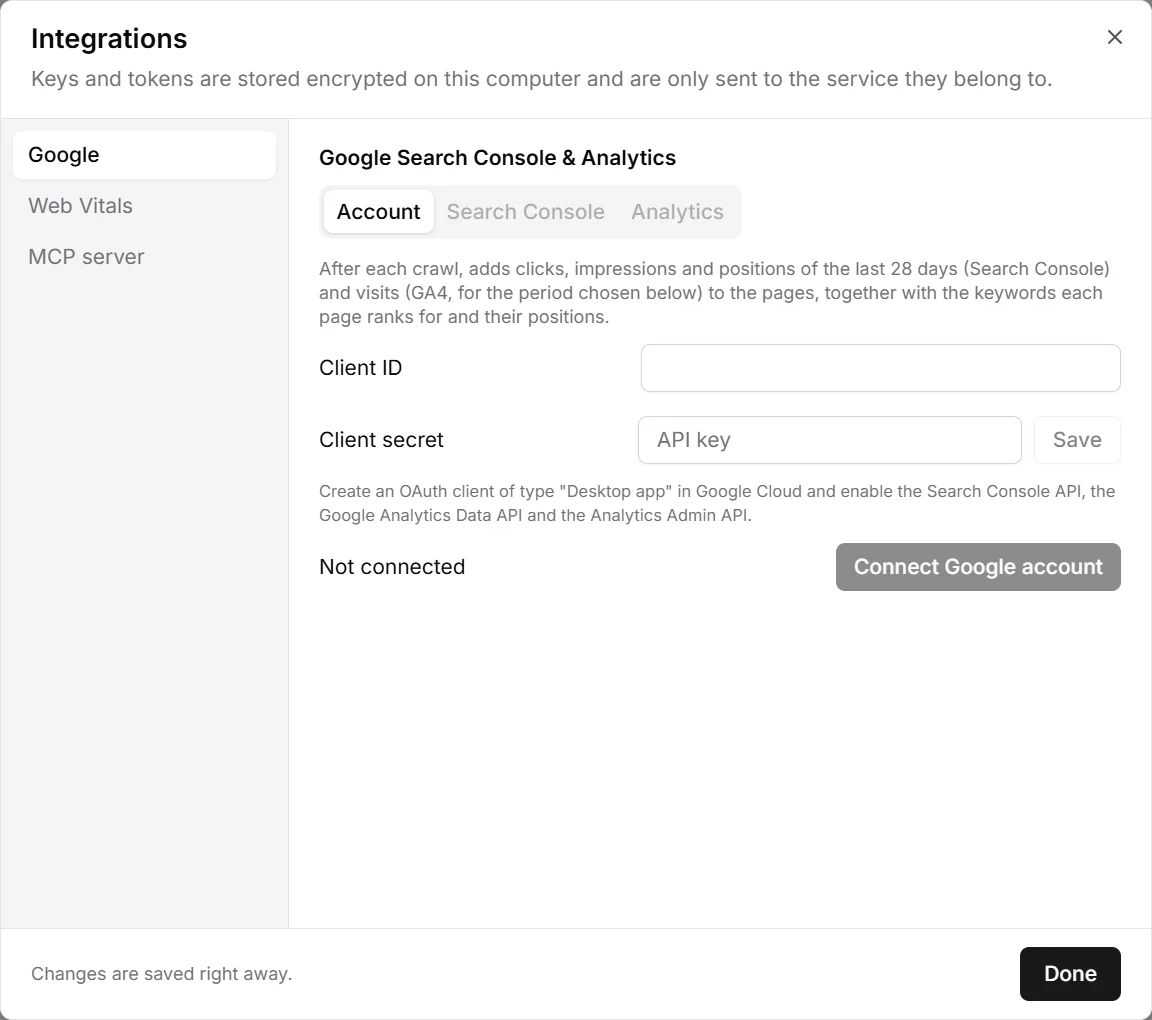
Search Console and Analytics use your Google account. To connect it, BumbleCrawl needs an OAuth client of your own from Google Cloud: it takes about five minutes, once.
- In the Google Cloud console, create a project (or pick one).
- Under APIs & Services › Library, enable the Google Search Console API, the Google Analytics Data API and the Google Analytics Admin API.
- Under APIs & Services › Credentials, create an OAuth client ID of type Desktop app. If asked, set up the consent screen first: external, with your own address as a test user is enough.
- Copy the client ID and the client secret into BumbleCrawl's Google section, and click Save next to the secret.
- Click Connect Google account, sign in in your browser and allow access.
Choose your properties
Once connected, the Search Console and Analytics tabs list the properties your account can access. Switch on the ones you want to use. After each crawl, the property that covers the crawled site is used automatically; one crawl never mixes data of two sites.
Analytics options
- The period: the last 7, 28 or 90 days.
- All traffic, or only visits from organic search.
- Page views (every view of a page) or landing pages (sessions that started on it). Landing pages with organic search show the visits each page brings from Google.
Where the data appears
- The Search Console and Analytics tabs of the table, with their columns for every page.
- The Keywords tab of a page: the queries it was shown for, with clicks, impressions and position.
- Checks in Health that combine both worlds: non-indexable pages that still get clicks or visitors, pages that rank on positions 8–20 (close to the first page), pages that rank well but few people click, indexable pages without any impressions, and pages without visits.
Sort the URL list by clicks before you start fixing: an issue on a page with 5,000 clicks a month matters more than the same issue on a page nobody visits.
Real-user Web Vitals (Chrome UX Report)
Google collects how fast pages load for real Chrome users and publishes it in the Chrome UX Report. It is what Google uses for rankings, and it only needs a free API key:
- In the Google Cloud console, enable the Chrome UX Report API and create an API key under Credentials.
- Paste it in the Web Vitals section and click Save.
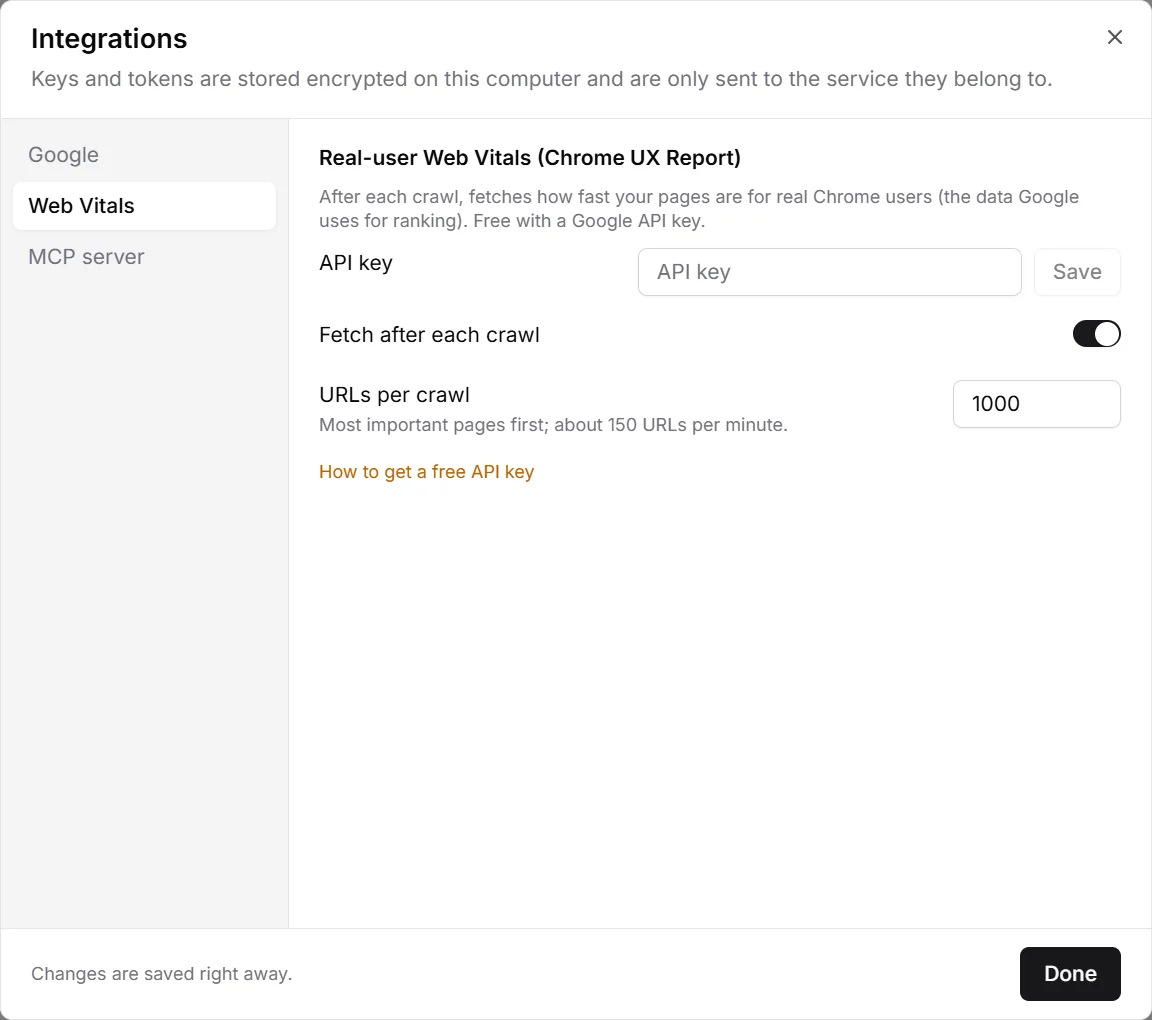
After each crawl, BumbleCrawl fetches the data for your most important pages (1,000 by default, about 150 per minute) and for the site as a whole. Pages show it in the Performance tab, above the lab values (see Web Vitals and page weight).
Google only has data for pages with enough visitors, so smaller pages show none. The values for the whole site appear at the top of Health.