Your first crawl
Enter a site, choose what to crawl and press Start. What happens while it runs, and the settings worth knowing.
Start a crawl
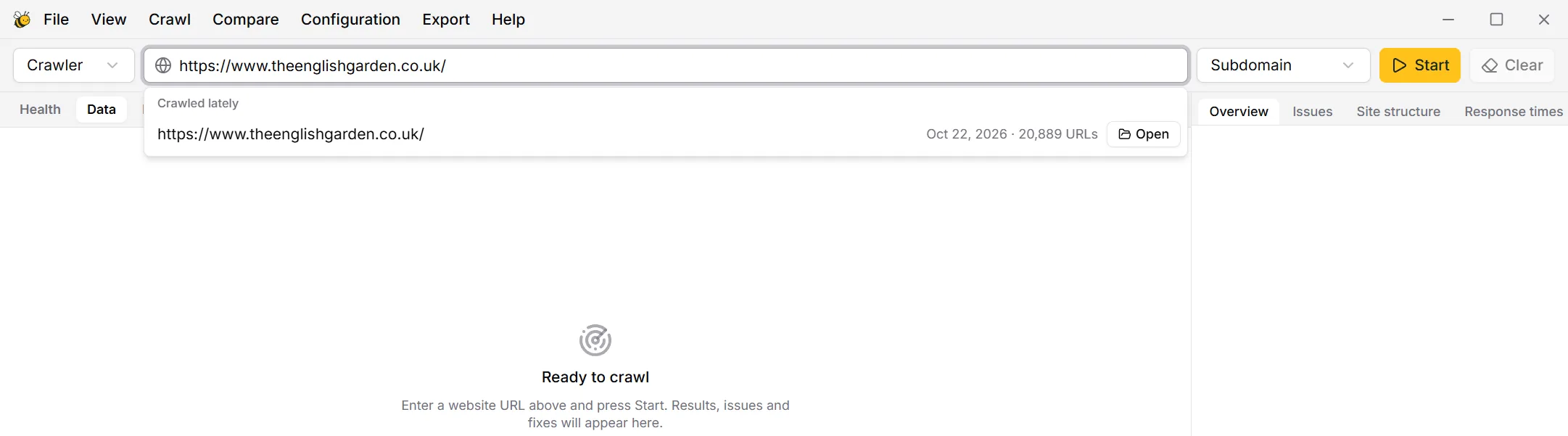
- Type the address of the site into the field at the top, e.g. https://www.example.com/. Start from the home page: BumbleCrawl follows every link from there, like a search engine does.
- Choose how far it goes with the field next to the address (see what to crawl). The default, Subdomain, is right for most sites.
- Press Start.
What to crawl
The field next to the address decides which pages count as part of the site:
- Subdomain
- Only the host you entered, e.g. www.example.com. Links to shop.example.com are checked but not followed.
- All subdomains
- The whole domain: www.example.com, shop.example.com, blog.example.com and so on.
- Subfolder
- Only pages under the address you entered, e.g. everything in /blog/. Useful for a section of a large site.
Links to other websites are checked once, to find broken ones, but never crawled further. The field on the left switches the mode: Crawler follows links, List checks only the URLs you paste or upload (one per line), for example the old URLs before a site migration.
While it runs
Results appear as they come in: you can browse the table, open pages and read issues while the crawl is still running. The status bar at the bottom shows how many URLs are crawled and queued, and the speed.
- Pause holds the crawl, e.g. if the site gets slow; Resume continues.
- Stop ends it. Everything crawled so far is kept and checked, and you can still continue a stopped crawl later with Resume.
- When all pages are fetched, BumbleCrawl analyses the crawl as a whole (redirect chains, duplicates, link scores, sitemaps and more). The status bar shows Analysing…, then Finished.
The free version stops at 500 URLs and tells you how many more it found. Everything crawled up to then is fully checked. Pro removes the limit.
Settings worth knowing
The defaults suit most websites. To change them, open Configuration›Crawl configuration…. Changes apply to the next crawl.
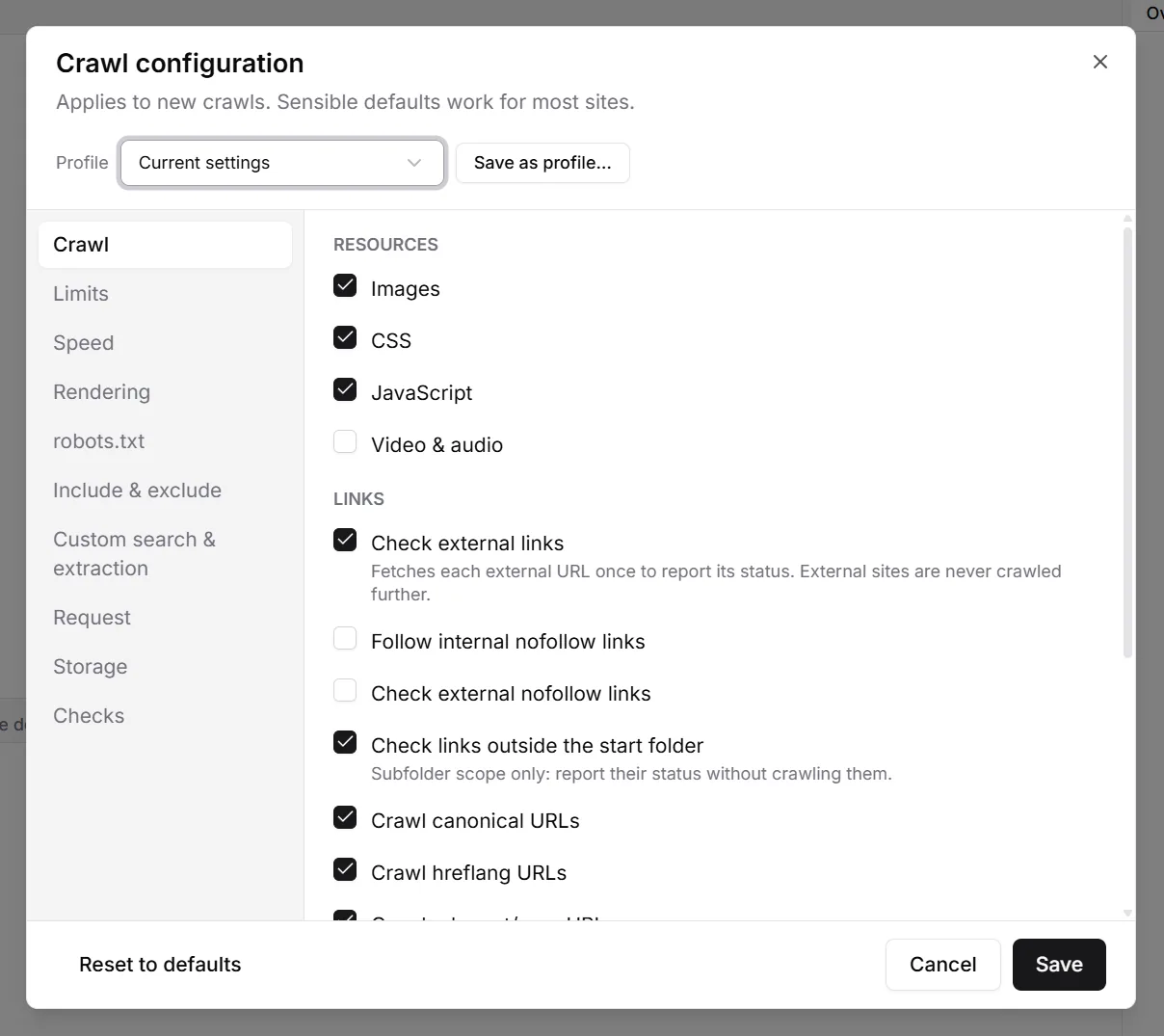
- Speed
- How many pages are fetched at the same time (5 by default) and an optional limit per second. Lower it for small or slow servers.
- Rendering
- Switch to JavaScript to load each page in a browser, like Google does. Needed for sites that build their content with JavaScript, and for Web Vitals and the accessibility checks; much slower.
- robots.txt
- Respected by default. You can ignore it, or ignore it but still report which URLs it blocks.
- Include & exclude
- Patterns for URLs to crawl only, or to skip, e.g. everything under /tag/.
- Request
- The user agent (BumbleCrawl, Googlebot, Bingbot, AI crawlers or your own), extra headers and a password for protected staging sites.
To reuse a setup, for example per client, choose Save as profile… at the top of the dialog.
BumbleCrawl identifies itself to the sites it visits. If you crawl a site you don't run, keep the speed modest. Site owners can read about our crawler on this page.
Your crawls are saved
Every crawl is saved automatically as a file on your computer. Open earlier crawls with File›Open crawl… or File›Recent crawls, and pass a crawl to a colleague with File›Export crawl file….