Reading the results
The main window explained: views, topic tabs, the URL table, the details of a page and the sidebar.
The main window
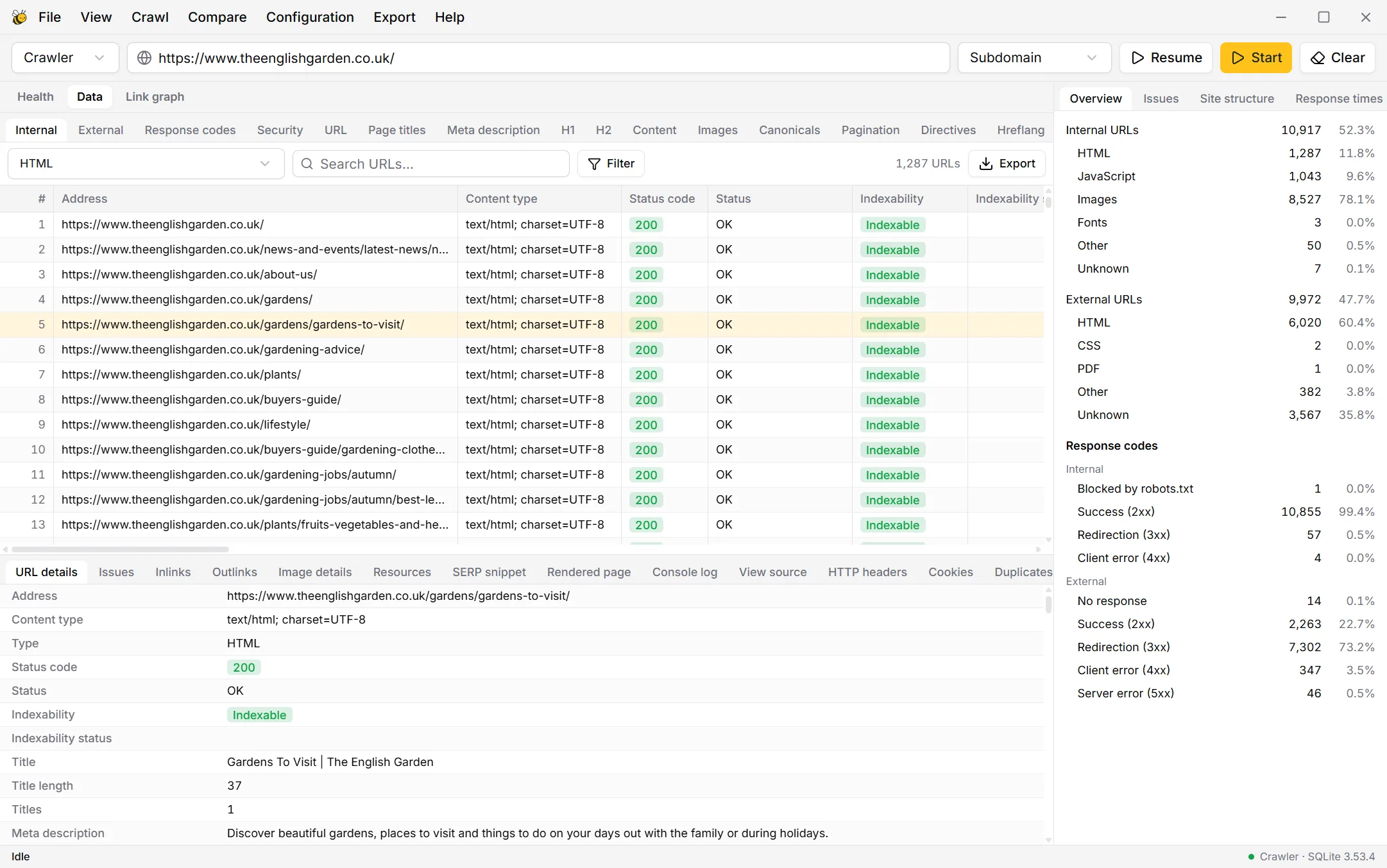
After a crawl, the window has four parts: the views and topic tabs at the top, the table of URLs in the middle, the details of the selected URL below it, and a sidebar with summaries on the right.
Three views
- Health
- The verdict: a health score and every check, passed or failed. See Issues and how to fix them.
- Data
- Every URL the crawl found, in tables by topic. This is where you look things up.
- Link graph
- Your internal links as a map, with pages grouped by folder and topic.
Topic tabs
In the Data view, each tab shows the URLs and columns for one topic. Internal has everything about your own pages; the others focus on one subject each, from Response codes and Page titles to Hreflang, Structured data and Accessibility. The row of tabs scrolls sideways.
Narrowing the list
- The first dropdown
- On Internal and External: the type of URL (HTML, images, CSS, PDF …). On the topic tabs: All, or the URLs with one particular issue.
- Search URLs…
- Shows only addresses that contain what you type.
- Filter
- Rules on any column, e.g. word count below 300 and status code 200. They also apply to exports.
- Export
- Saves exactly the rows you see as CSV or Excel. More in Exports and reports.
Click a column header to sort by it; click again to reverse the order.
The details of a URL
Click a row to see everything about that URL in the pane below the table. The most useful tabs:
- URL details
- Every value the crawl recorded for the URL, one per line.
- Issues
- The problems on this URL, each explained, with how to fix it.
- Inlinks
- The pages that link here, with anchor text and where on the page the link sits (content, navigation, footer …).
- Outlinks
- Where this page links to, including the status of each target, so you spot broken links on the page.
- SERP snippet
- How the title and description may look in Google's results, with their width in pixels.
Some tabs need a crawl setting: View source and HTTP headers need storing HTML and headers; Rendered page, Console log and Performance need JavaScript rendering. All are in Configuration›Crawl configuration….