Issues and how to fix them
How BumbleCrawl finds problems, what the Health score means, and where to read why an issue matters and how to fix it.
How BumbleCrawl finds problems
BumbleCrawl runs more than 200 checks: on status codes, titles and descriptions, headings, content, links, images, canonicals, structured data, security headers, accessibility and more. Every check that fails becomes an issue, and every issue comes with two things: why it matters, in plain language, and how to fix it.
Each check has a severity:
- Errors
- Something is broken: pages that don't load, broken links, missing titles, conflicting canonicals. Fix these first.
- Warnings
- Problems that cost rankings or visitors, such as redirect chains, duplicate titles or missing descriptions.
- Notices
- Worth improving when you have the time: titles a bit too long, thin pages, deep pages.
Most checks run while a page is crawled. Some need the whole site, such as duplicates, redirect chains, orphan pages and sitemaps; they run when the crawl is finished and show after the crawl until then.
The Health view
Health is the place to start after a crawl. It shows every check of the site at once, grouped by topic, with how many URLs fail it and what share of the site that is.
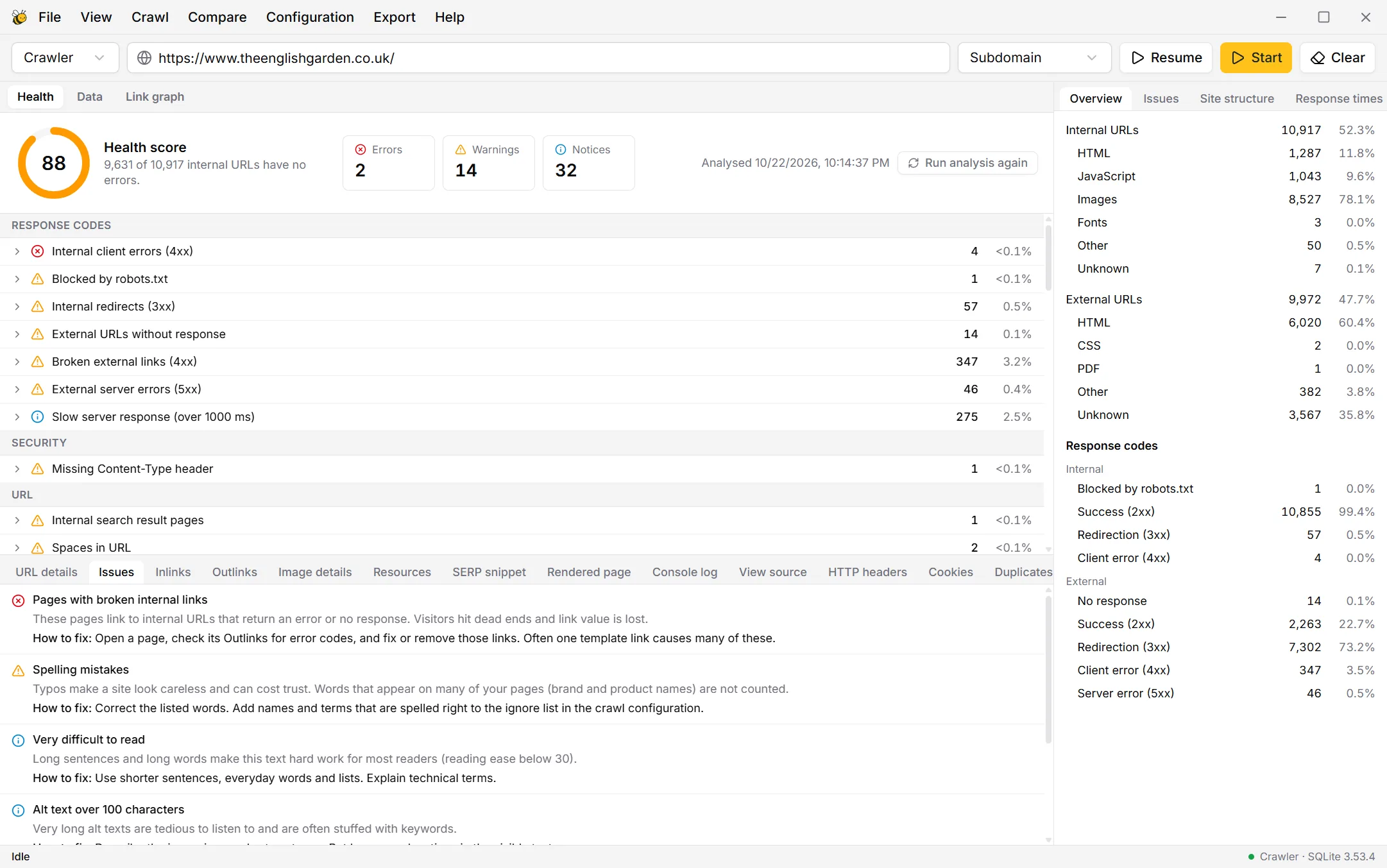
The health score
The score is the share of internal URLs without a single error: if 950 of 1,000 URLs have no errors, the score is 95. It's green from 90, amber from 70, red below. Warnings and notices don't lower it, so a site can score 100 and still have plenty to improve.
Errors, warnings, notices
The three boxes count the checks that fail at each severity. Click one to show only those checks; click it again for all.
Why it matters and how to fix it
Click a check to open it:
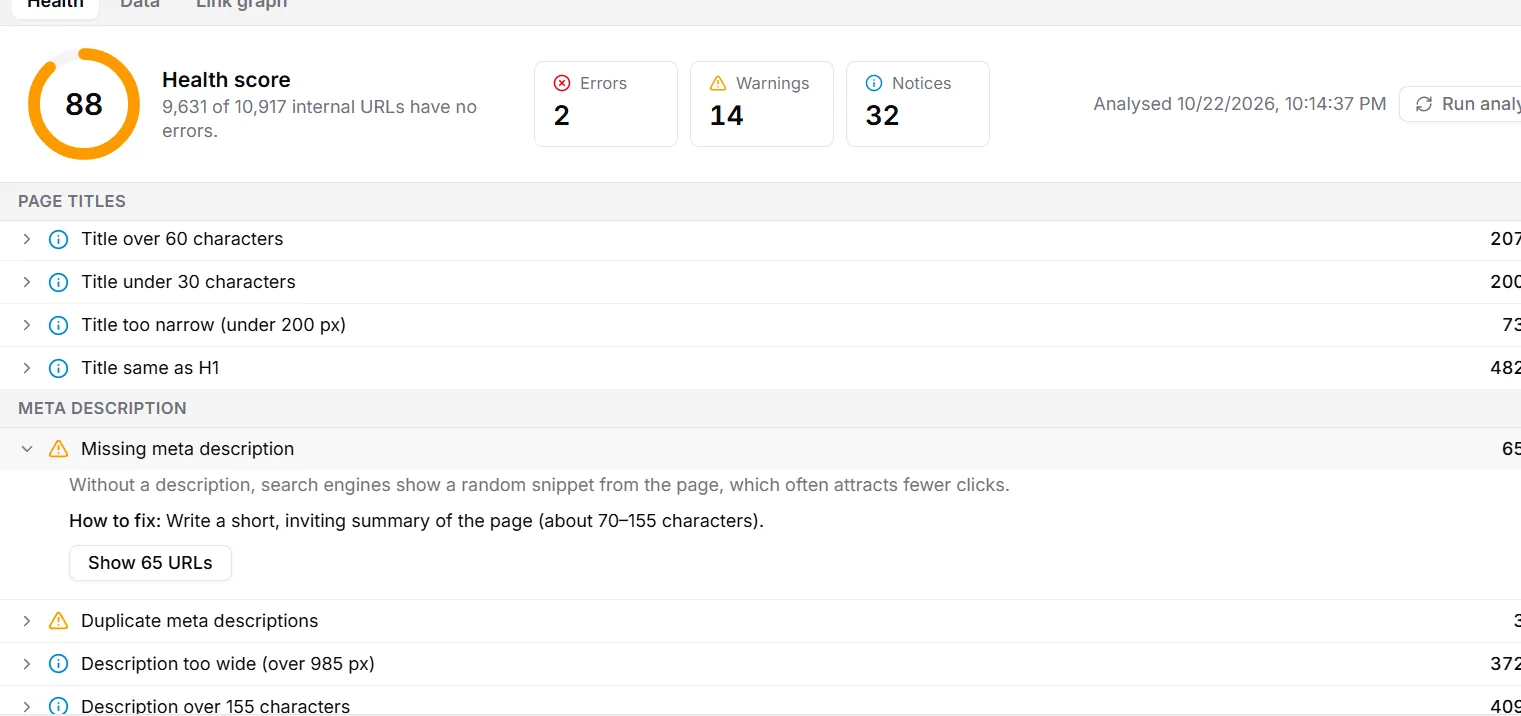
- The grey text says why it matters, the line below how to fix it. Thresholds in the text, like 70–155 characters, are the ones your crawl used.
- Show … URLs switches to the Data view with exactly those URLs listed, and the columns that matter for the issue.
- Where a standard explains more (for accessibility rules, for example), Learn more opens it.
The issues of one page
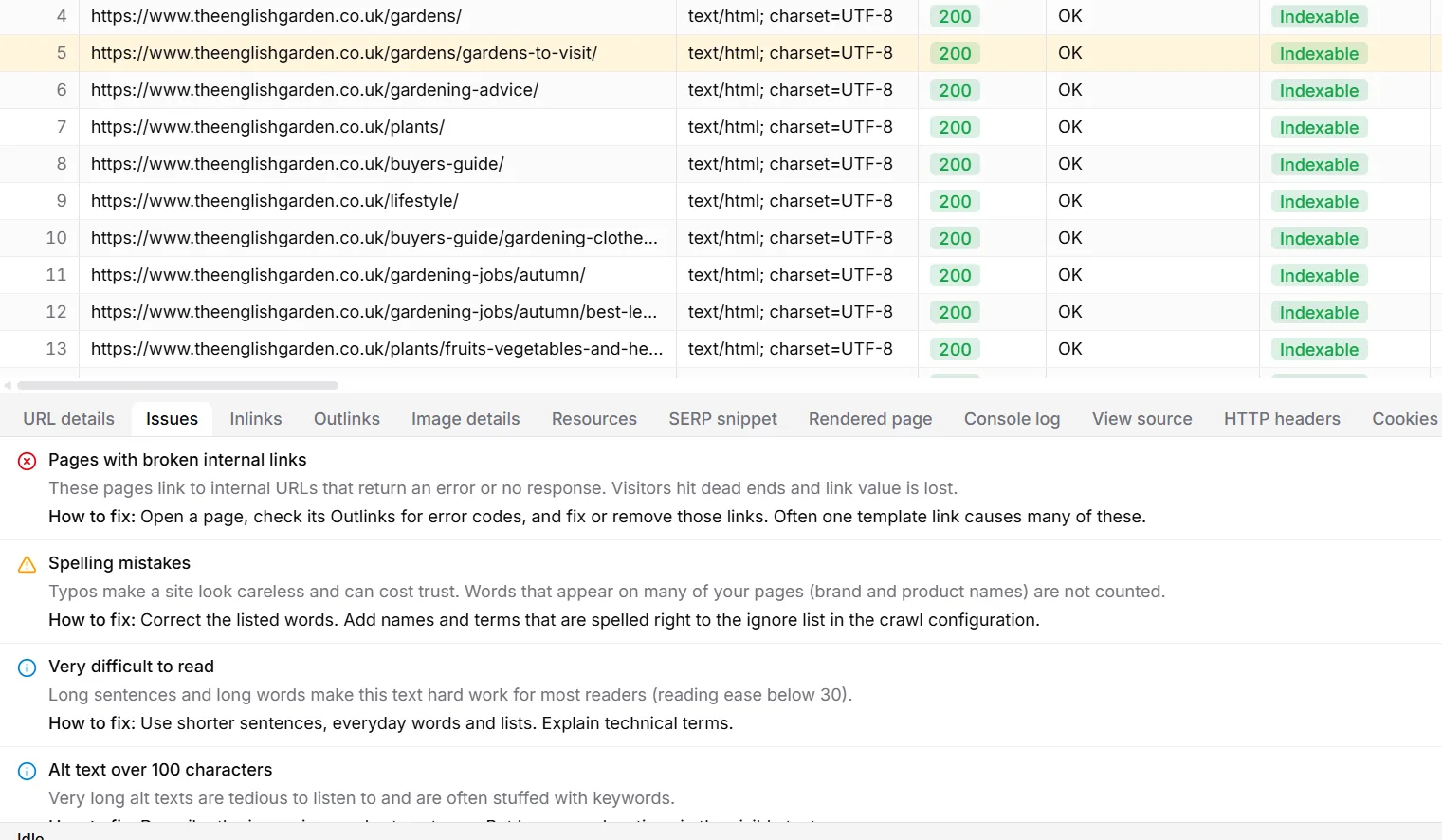
Select a URL in the table and open the Issues tab below it: every problem on that page, explained the same way.
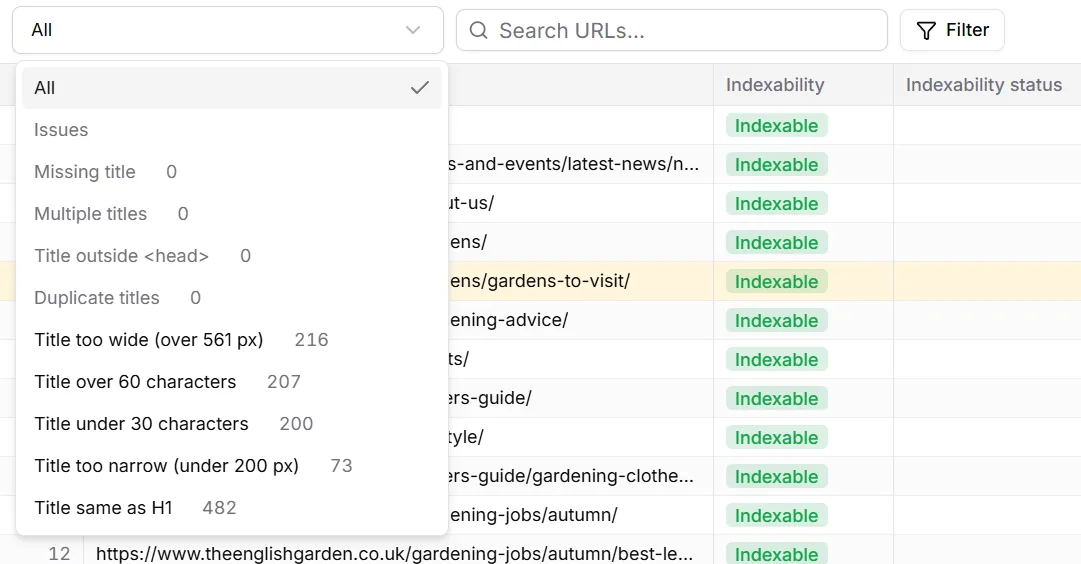
On the topic tabs, the first dropdown lists that topic's issues with their counts, so you can go through one problem at a time, e.g. all page titles over 60 characters:
Adjusting the checks
The limits behind the checks (title length, thin content, slow responses, image size and more) are in Configuration›Crawl configuration… under Checks. After changing them, open Health and click Run analysis again: the open crawl is checked again with the new limits, without crawling it again.
Connect Google Search Console, Analytics or real-user Web Vitals in Configuration›Integrations… and more checks appear, such as non-indexable pages that still get clicks, or pages that rank well but get few clicks.