JavaScript rendering, Web Vitals and accessibility
Render pages in a browser like Google does, measure lab Web Vitals and page weight, and run the axe-core accessibility checks.
When you need it
By default BumbleCrawl reads the HTML a server sends, which is fast and what most sites need. Some sites build their pages in the browser with JavaScript (React, Vue, Angular and many shop systems): their HTML is nearly empty until scripts run. Google runs those scripts before it indexes a page, and with JavaScript rendering BumbleCrawl does too.
Rendering is also what the following need, because they measure a real page in a browser:
- lab Web Vitals (LCP, CLS, TBT) and page weight,
- the accessibility checks,
- screenshots of each page,
- JavaScript redirects and the errors in the browser console.
Turn it on
Open Configuration›Crawl configuration…, go to Rendering and choose JavaScript (like Google).
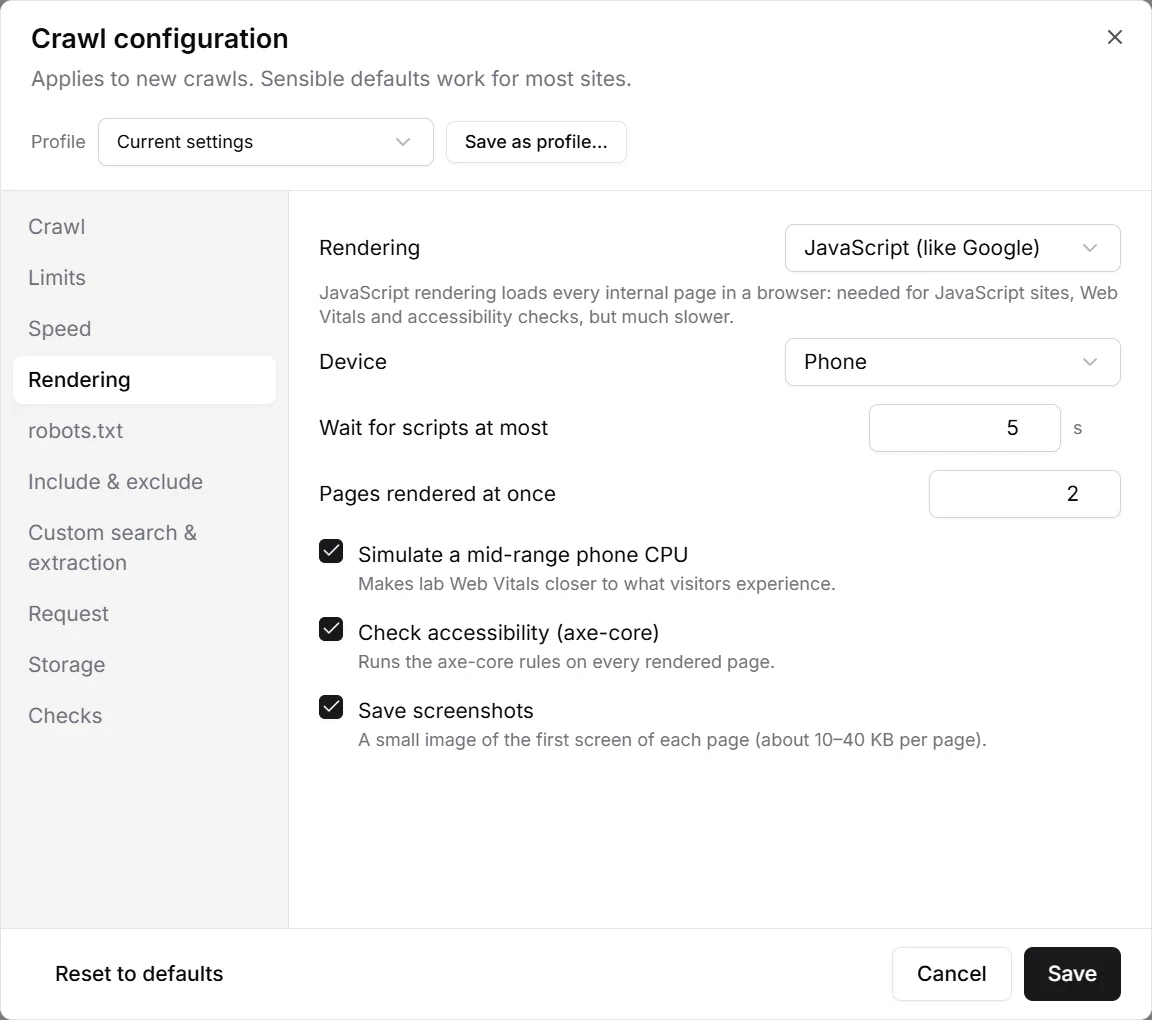
- Device
- Phone (like Googlebot smartphone) or desktop: the screen size and user agent of the browser.
- Wait for scripts at most
- How long to wait after the page has loaded for scripts and network requests to settle.
- Pages rendered at once
- More is faster but needs more memory and CPU. 3 suits most computers.
- Simulate a mid-range phone CPU
- Slows the browser down like a typical phone, so lab Web Vitals come closer to what visitors experience.
- Check accessibility (axe-core)
- Runs the accessibility rules on every rendered page.
- Save screenshots
- Keeps a small image of the first screen of each page (about 10–40 KB per page).
Rendering loads every internal page in a real browser, so a crawl takes several times as long. For a large site, crawl without rendering first, then render a section or a list of URLs (see List mode).
See what the browser saw
Select a page and open the Rendered page tab below the table to see its screenshot. View source shows the HTML from the server next to the rendered HTML (with Store HTML on), and Console log lists JavaScript errors and resources that failed to load.

Web Vitals and page weight
The Performance tab of a page shows what the rendering measured:
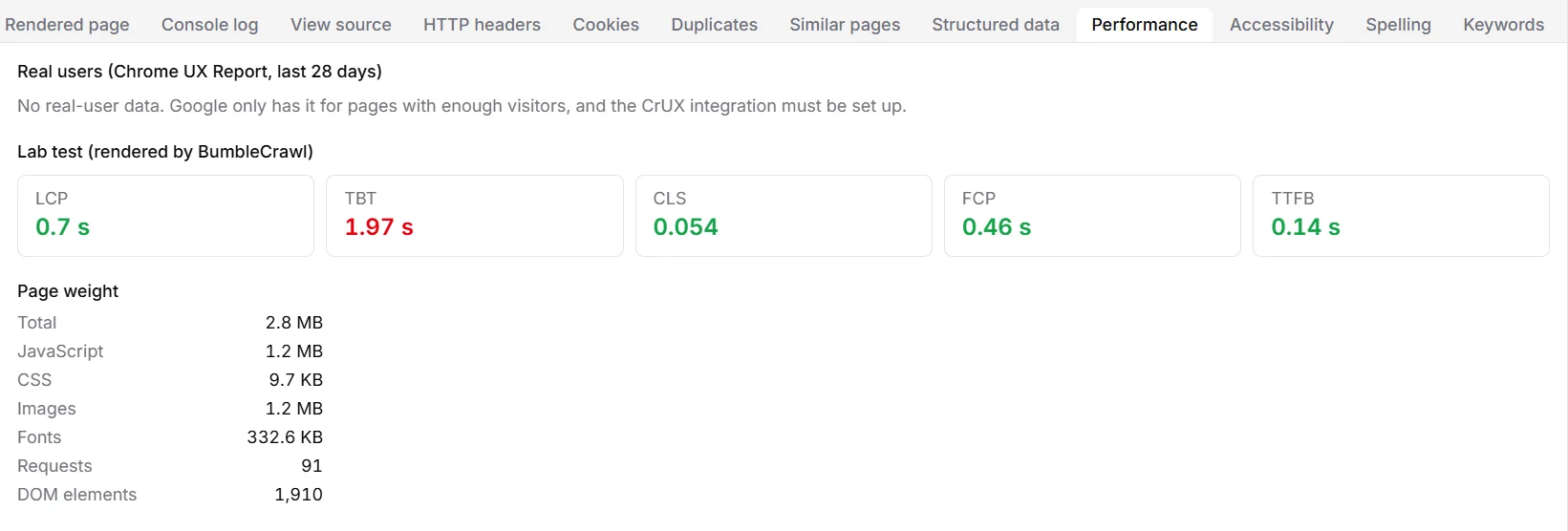
- LCP
- Largest Contentful Paint: when the main content appears. Good up to 2.5 s.
- TBT
- Total Blocking Time: how long scripts keep the page from reacting to taps and clicks. Good up to 200 ms.
- CLS
- Cumulative Layout Shift: how much the layout jumps while loading. Good up to 0.1.
- FCP, TTFB
- When the first content appears, and how long the server takes to answer.
Lab values come from one load on your computer and vary from run to run. What Google uses for rankings is the experience of real Chrome users. BumbleCrawl shows that too, above the lab values, once the Chrome UX Report is set up (see real-user Web Vitals).
The checks in Health list slow pages (LCP over 2.5 s), layout jumps, scripts that block the page, pages heavier than the limit you set (3 MB by default) and pages with more than 1,500 HTML elements.
Accessibility
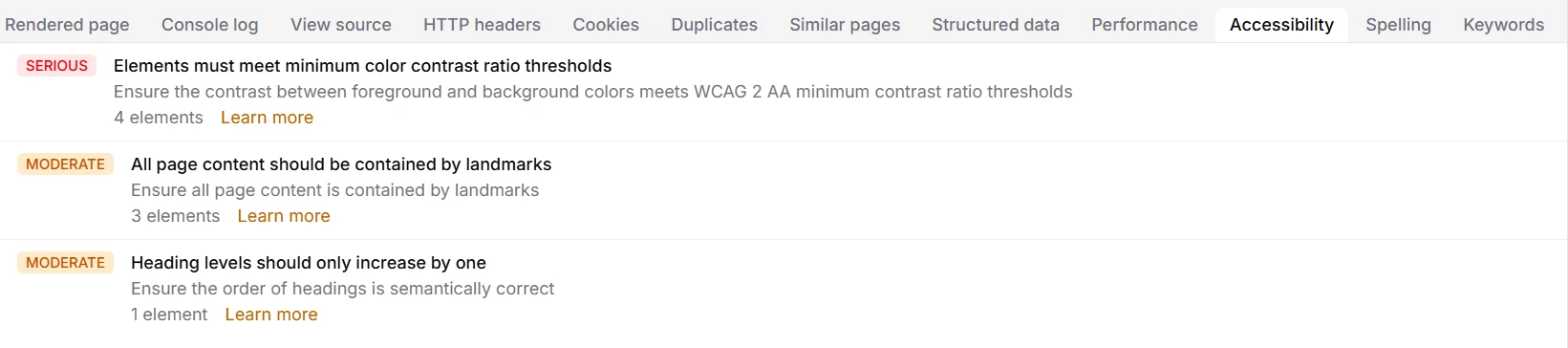
With accessibility checks on, BumbleCrawl runs the rules of axe-core, the engine behind most accessibility testing tools, on every rendered page: contrast, labels on form fields and buttons, alt text, the order of headings, landmarks, ARIA attributes and more.
Reading the results
- Each problem has an impact: Critical, Serious, Moderate or Minor, and the number of elements on the page that fail it.
- Learn more opens the rule's explanation with examples of how to fix it.
- The Accessibility tab of the table lists every page with problems, and Health counts the pages per rule, so a problem in a template shows up once with all its pages.
Automatic checks find a good part of all accessibility problems, not all of them. Whether alt text describes the image well, or a page can be used with the keyboard alone, still needs a person to try it.