The link graph
Your internal links as a map: pages grouped by folder and, inside each folder, by topic, with the terms that name each group.
Your site as a map
The Link graph view draws the site's most important pages (up to 10,000, ranked by their internal links) and the links between them. Pages that belong together sit together: first by folder, then, inside each folder, by topic. You see at a glance how the site is organised, which sections link to each other and which float on their own.
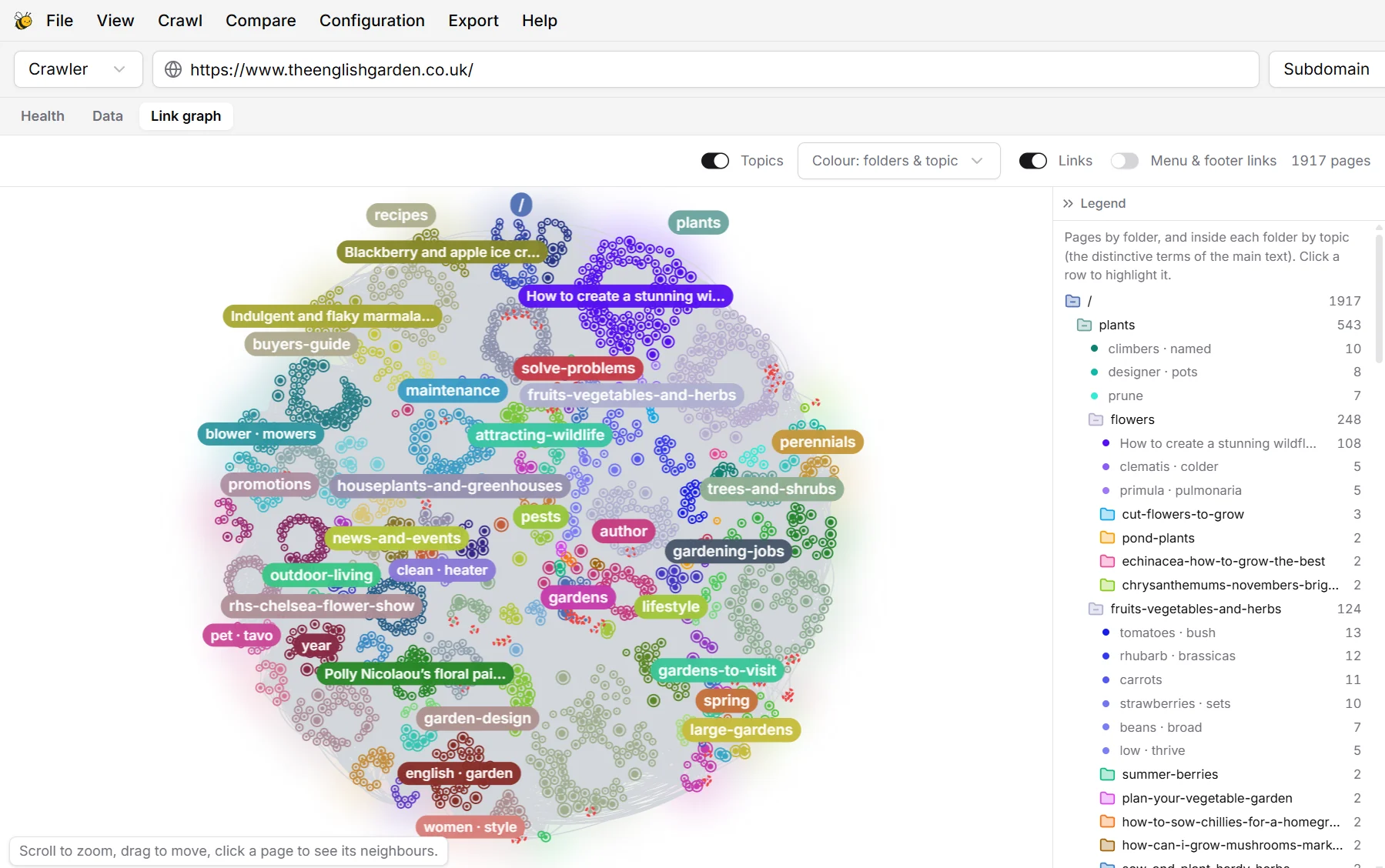
- Each dot is a page; the bigger, the more internal links point to it.
- Scroll to zoom, drag to move. Hover a page to see its address, click it to show only its neighbours: the pages it links to and the pages that link to it.
- Menu & footer links is off by default: links repeated on almost every page hide the real structure. Switch it on to see them.
- Colour switches between folders and topics, and indexability (indexable, not indexable, broken).
Folders
Folders come from the URLs: /plants/flowers/ is a folder inside /plants/. A directory with a single page counts toward its parent, so /blog/my-post/ is a page of /blog/, not a folder of its own. Numbers in URLs, such as pagination or dates, aren't folders either.
Hover a folder's name in the graph to see its full path and what it is about: the terms that set its pages apart from the rest of the site.
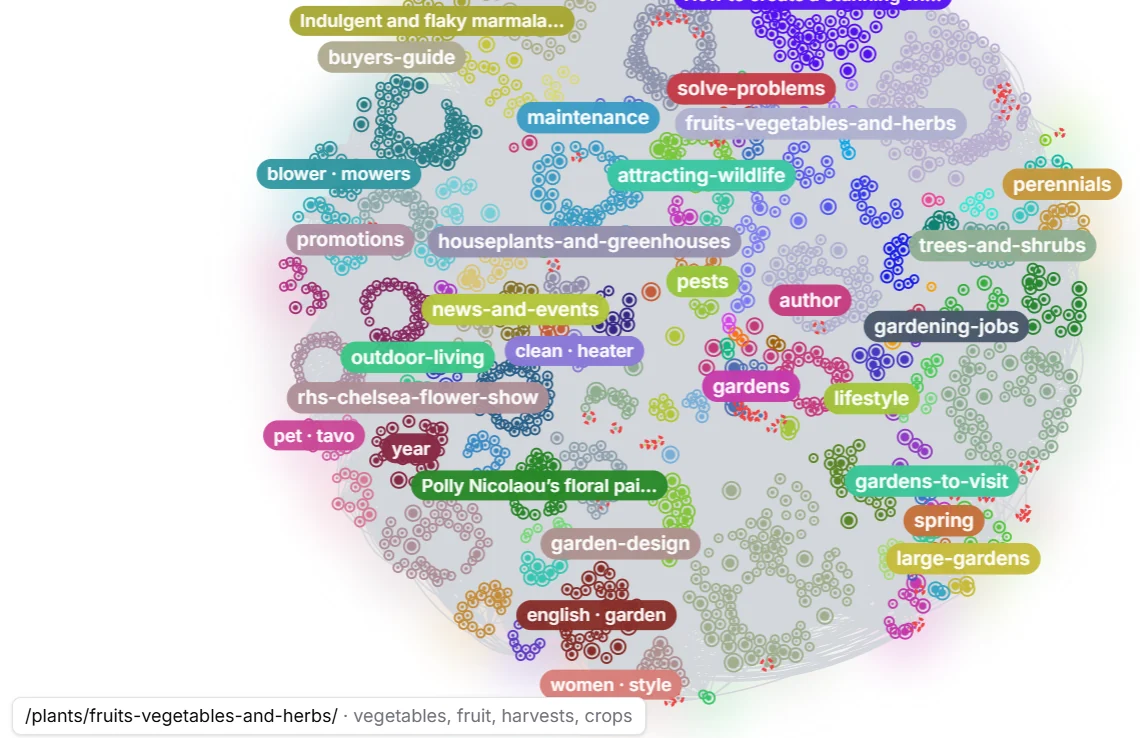
Topics inside folders
With Topics on, BumbleCrawl also groups the pages of each folder by what they're about. It needs no AI model and nothing leaves your computer:
- Every page is described by the 20 terms that are most typical of its main text: terms it uses often and that few other pages in its folder use (this weighting is called WDF*IDF). Words every page uses, like the site's name or menu words, count for nothing.
- Pages that share many of those terms form a topic. A topic has at least 5 pages, and a folder needs at least 10 pages of its own to be split.
- Topics never cross folders: they show how a folder is organised inside, while the folders show how the site is organised. Pages that fit no topic stay plain pages of their folder.
On a shop, topics typically find product series and makers; on a magazine, subjects such as lawn mowers, pressure washers or secateurs inside a buyer's guide.
How topics get their names
A topic is named after the two terms that set it apart: typical of its pages and rare in the rest of the folder, and also used in the pages' titles. If no term qualifies, words from the titles name it, and if none stand out either, the title of the topic's most important page.
Topics need the terms BumbleCrawl stores while crawling. Crawls made with versions before 1.0.1 don't have them; crawl the site again to see topics.
The legend
The column on the right lists every folder and topic with its number of pages. The arrows at the top fold it away to a narrow strip, which gives the graph more room.
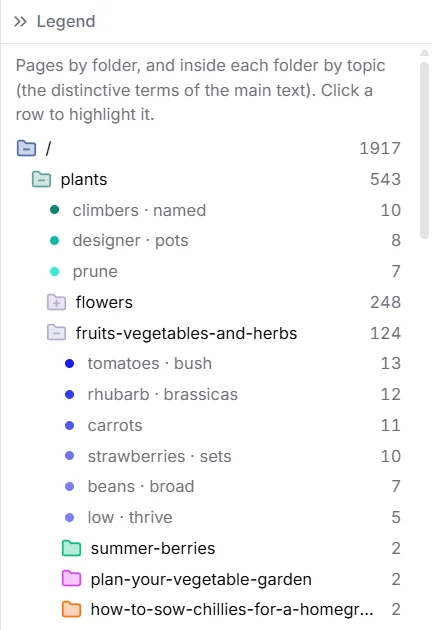
- Folder icon
- Click it to collapse or open the folder. A minus means it is open, a plus that it holds topics or subfolders you can open.
- Name
- Click it to highlight the folder or topic in the graph and fade the rest; click again to clear. Hover it for the full path and the folder's terms.
- Dots
- Topics, in shades of their folder's colour.
What to look for
- Islands: a group of pages with few lines to the rest is hard to reach for visitors and search engines. Link to it from related sections.
- Topics split across folders: the same subject in two places often means two pages compete for the same searches. See pages about the same topic.
- Big folders without topics: a folder that is one large blob may need a clearer structure or subcategories.